Run your to-do list through Pomodoro cycles

A plain Pomodoro timer just counts work and break minutes. This page pairs that same rhythm with a built-in task list, so instead of watching the clock in the abstract, you point each stretch of focus at something on your to-do list. Add a task, start it, and the timer keeps a running count of how many pomodoros it has actually received — no separate notebook or spreadsheet needed.
This is the same timer that powers the general Pomodoro page on this site, just pointed at a single job: turning a list of things you need to do into a sequence of focused cycles you can actually get through.
How to estimate pomodoros per task
Before you start, it helps to guess how many 25-minute cycles a task will realistically take. Most everyday tasks land somewhere between one and four pomodoros (25 minutes to about two hours of focused work). Two simple rules keep the estimate useful instead of arbitrary:
- More than four pomodoros? The task is probably too big to track as one unit. Split it into smaller pieces — "write the report" becomes "outline", "draft section 1", "draft section 2", "edit" — so progress is visible along the way instead of one long unbroken bar.
- Less than one pomodoro? Small errands ("book a dentist appointment", "reply to that email") rarely deserve their own slot. Bundle a few of them into a single task like "quick errands" and knock them out in one cycle.
The estimate doesn't need to be perfect — it just needs to exist. Even a rough guess turns a vague to-do list into something you can actually schedule your day around.
Add, track and complete tasks in the timer
The task list lives right next to the timer, and it's built specifically for this workflow:
- Up to three active tasks. Add a task, give it a name and a target number of pomodoros, and it appears in the list. Click a task to make it active — the timer switches to that task's own template and starts counting cycles toward it.
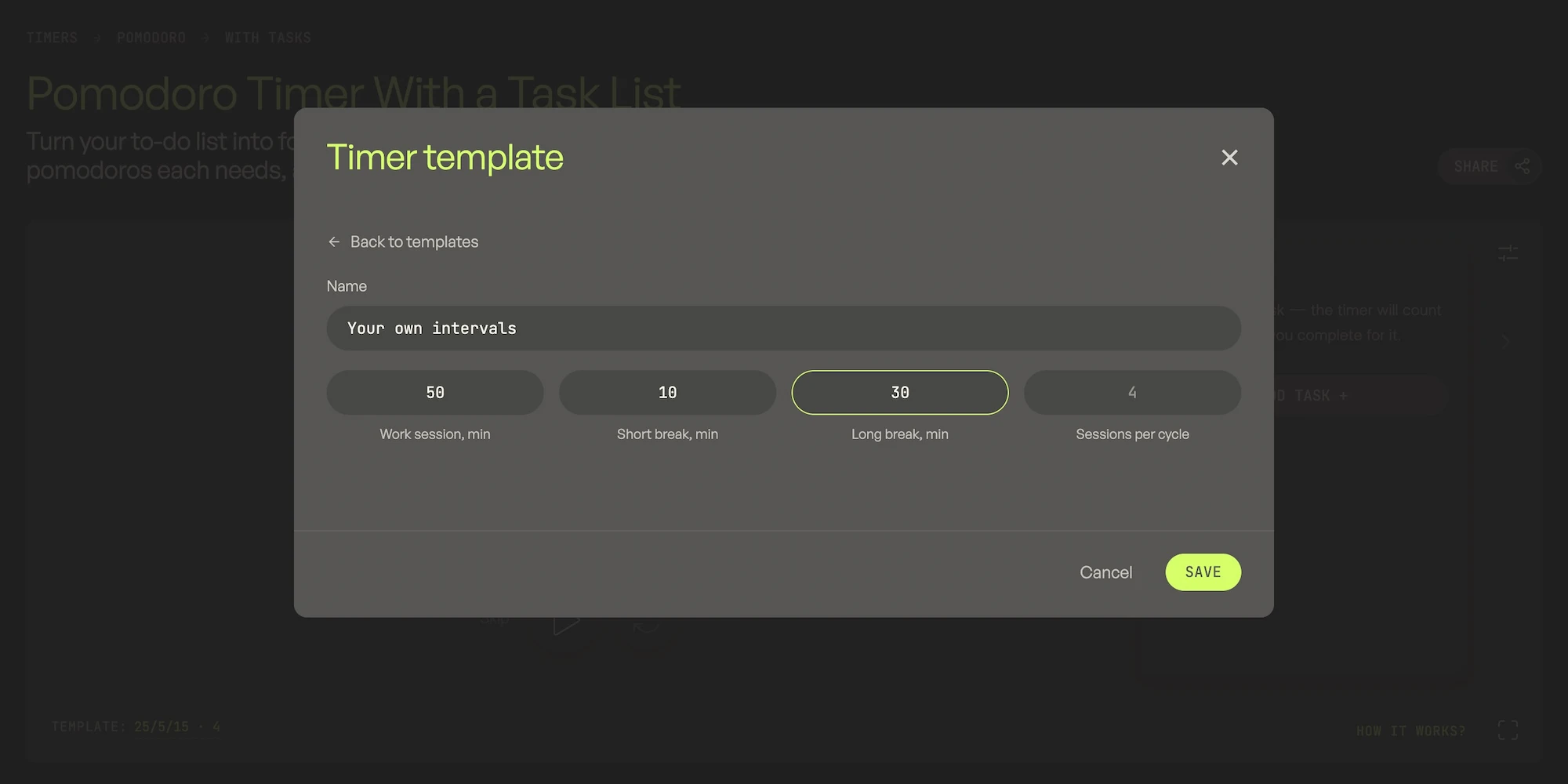
- Each task keeps its own template. A quick task and a deep-work task don't have to share the same rhythm — set a short interval for one and a longer one for another, and switch between them by clicking.
- Progress adds up automatically. Every completed work session counts toward the active task's total. Once a task reaches its target number of cycles, it's marked done on its own — no manual checkbox to remember.
- Skipped sessions don't count. If you skip a work session early, it isn't added to the task's progress — that keeps the cycle count honest instead of something you could click through in seconds.
- Nothing leaves your browser. Tasks, progress and templates are saved locally, so your list is still there the next time you open the page — no account, no sync, no data sent anywhere.
Everything else the timer can do
Auto-start between phases, independent sounds and volume for work and breaks, a full-screen mode, and ready-made templates beyond the classic 25/5 all live on the timer too — they just aren't the focus of this page. See the main Pomodoro timer for the full feature tour.

Tip
If a task keeps needing "just one more pomodoro" past four cycles, that's usually a sign it isn't really one task — split it, and each piece will actually get marked done instead of dragging on indefinitely.