


What is an online meeting planner?
A meeting planner (sometimes called a time zone planner or world clock scheduler) is a tool that lines up the local time of several cities side by side and shows which hours are actually comfortable for everyone — as opposed to just technically possible. If a colleague, or a friend, lives in a different time zone and you agree to call at 8:00, it's not clear whose 8:00 that is. What's 8:00 for one of you can be a completely different hour for the other, and doing that math in your head is harder than it sounds.
The need for this is bigger than it looks: most distributed teams today span at least two regions, and mismatched or miscommunicated time zones are a routine cause of missed calls and rescheduled launches. Daylight saving time makes it worse — it starts and ends on different dates in different countries, some places don't observe it at all, and a fixed "UTC+3" you wrote down in March can quietly become wrong in October. A planner that recalculates everything for the current moment removes that whole category of mistakes.
People reach for a meeting planner for a few recurring reasons: setting up a recurring call with a distributed team, agreeing on a single kickoff time with an international client, planning a trip and wanting to know when it's safe to call home, or simply checking what time it is right now in a city before you dial.
How our meeting planner works
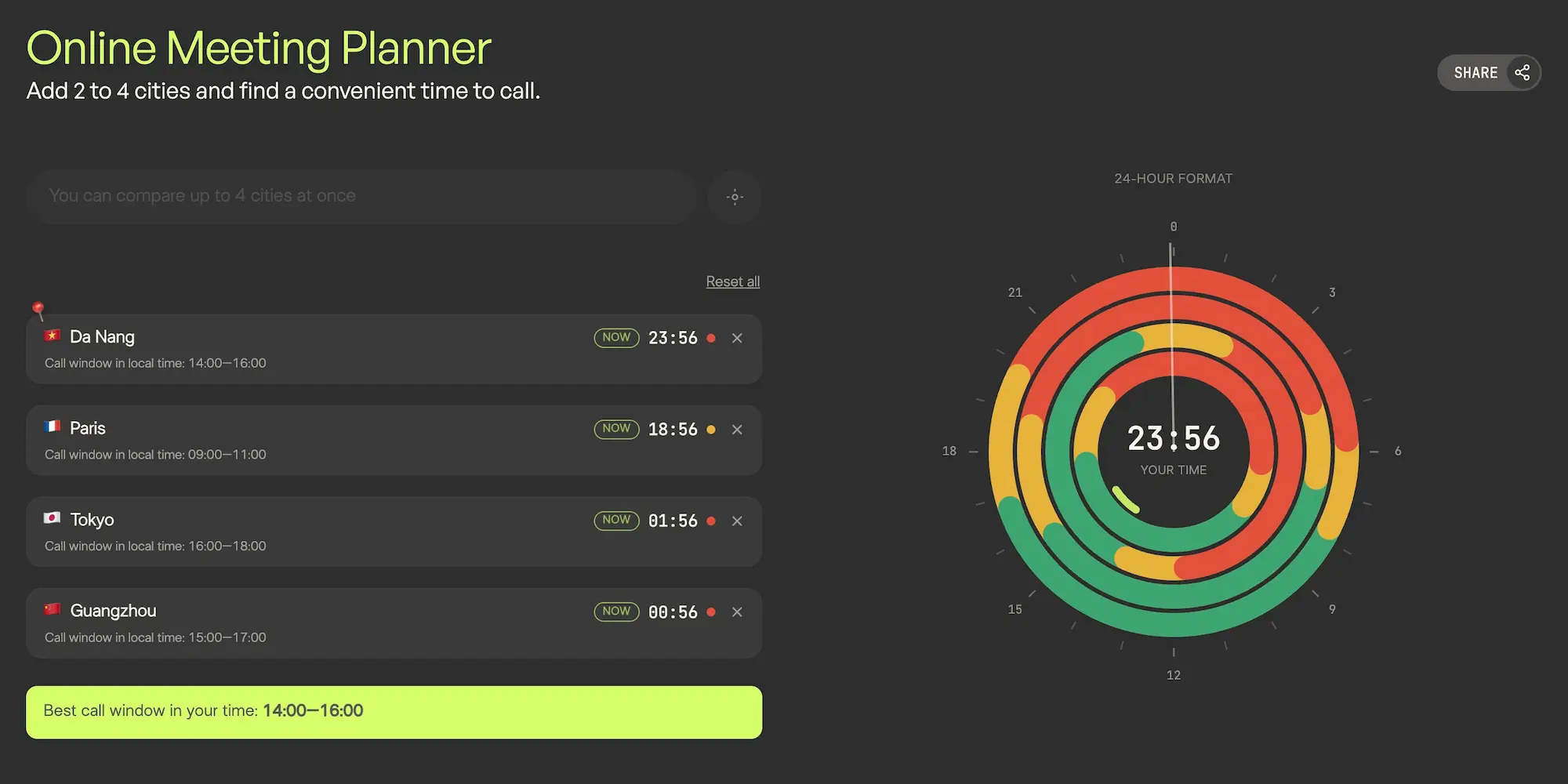
Most time zone tools try to do everything — calendars, polls, integrations, accounts — and end up burying the one thing you actually came for: a quick, visual answer to "when can we talk?" We built ours to answer exactly that question, and nothing else, as clearly as possible.
- Add up to 4 cities. Search by city name, pick from the results, and its ring appears on the dial instantly. Remove any city with one click.
- Color-coded comfort, at a glance. Every hour of every city's ring is green (comfortable), yellow (acceptable) or red (best avoided) for a call, based on normal working hours.
- One dial, not a spreadsheet. Instead of a grid of numbers, all selected cities sit on a single 24-hour clock face. Drag around it or click any hour to preview that exact moment in everyone's local time.
- The best window, calculated for you. The planner first looks for a stretch where every added city is green at once. If that doesn't exist, it falls back to a window where every city is at least green or yellow, and shows it in your own local time. If neither exists, it says so: no acceptable overlap, split the calls between participants.
- Find your city automatically. Click the location button next to the search box. If your browser asks for permission to share your location, allow it, and the city nearest to you is added right away.
- Share a link with your team. Add your cities, then hit "Share" right above the planner and copy the link. Whoever opens it gets the same cities already set up.
- No account, no clutter. There's nothing to sign up for and nothing to configure. Open the page, add your cities, read the dial.
Tips for scheduling across time zones
- Search by city, not by abbreviation. "CST" alone is ambiguous — it can mean Central Standard Time in the US or China Standard Time. That's why the planner's search only works by city name: pick "Chicago" or "Shanghai" and the right offset follows automatically, no guessing.
- Rotate the inconvenient slot. When a team spans the Americas, Europe and Asia, there is often no hour that's pleasant for all three. Instead of always asking the same region to dial in at night, alternate who takes the early or late slot from meeting to meeting.
- Recheck around daylight saving changes. Different regions switch their clocks on different dates, and some don't switch at all, so the gap between two cities isn't fixed year-round. If a recurring meeting suddenly feels off, this is usually why.
- A narrow overlap is still a real overlap. Cities on nearly opposite sides of the globe may only share one or two workable hours a day. That's normal, not a sign something is broken — plan around that window deliberately rather than fighting it.
- Block focus time around the call. Once you've settled on a window, use our Pomodoro timer to run focused work sessions before or after the meeting instead of leaving the rest of the day open and fragmented.
When this is especially useful
If you keep calling the same team in another time zone and re-figure their local hour every single time, you're not alone. Some of these connections aren't a coincidence — whole industries sit behind them. Outsourcing to India, support in the Philippines, hiring in Eastern Europe — each has its own typical gap, worth learning once instead of recalculating every time. Below are the most common cases, and the cards above the article load the right cities instantly if one of them is you.
- New York and London. About 5 hours apart — the usual working window is 9:00–12:00 New York time. The planner shows it for both sides at once and accounts for the US and UK switching to daylight saving on different dates.
- New York and Mumbai. The classic pairing for teams outsourcing development to India. A roughly 10-hour gap means the working days barely overlap directly — the planner finds the narrow window (early morning on one side against late evening on the other) instead of you working it out by hand.
- San Francisco and Manila. A standard pair for support teams and BPO in the Philippines — evening in San Francisco usually lines up with morning in Manila, about 15 hours apart.
- New York, Mexico City and Manila. The "tri-shore" model many US companies run: a core team in the US, a nearshore office in Mexico for same-day synchronous work, and an offshore team in the Philippines covering overnight hours and second-line support. Three time zones on one dial instead of three open tabs.
- New York and Warsaw. Eastern Europe is an increasingly common hiring choice specifically because of the small time gap — about 6 hours leaves half the working day in common. The planner shows exactly which half.
- Sydney and London. A frequent pairing for anyone with family or colleagues on the other side of the world — 9 to 11 hours apart (the exact gap shifts because the two countries switch to daylight saving in different months), and the window is almost always tilted toward early morning on one side.
- Sydney, Tokyo, London and New York. The classic currency-trading cycle, where trading activity hands off from one session to the next around the globe. The planner holds up to 4 cities at once, so the whole cycle fits on a single dial instead of four open tabs.

Fact
China spans a distance that would normally cover five time zones, but the whole country runs on a single one — Beijing time — by government decision since 1949.